Case Media
Case Notes
This page keeps the media, full prompt, and original source together so you can inspect the result first and decide whether the prompt is worth copying, saving, or comparing.
Case Insights
To make this page easier to search, cite, and reuse later, the case is also broken down into practical guidance about usage, visual cues, and prompt structure.
Best Fit Scenarios
- Use this as a ui & social screens benchmark when you need a fast style baseline before rewriting your own prompt.
- It is especially helpful if your target overlaps with UI, Screenshot, Character and you want to judge the image result before tuning wording.
- Keep it as a control sample when you compare nearby prompt variants one variable at a time.
Visual Signals To Notice
- The clearest style signals here are UI, Screenshot, Character, so those should usually stay in your first rewrite.
- The important layer is usually interface density, card hierarchy, and how the screen tells the story before you read small text.
- This case keeps 2 media outputs, which makes it easier to check whether the style remains stable across multiple results.
How The Prompt Is Structured
- The prompt reads as a long, highly specified prompt, which is useful when you want to judge how much specificity this direction needs.
- Its keyword cluster is centered on UI, Screenshot, Character, so you can usually keep that cluster while swapping subject, camera, layout, or copy details.
- A practical rewrite path is: keep the outcome, keep the strongest style cues, then replace only the subject and environment blocks.
Good Follow-up Questions
- What changes first if you keep UI, Screenshot, Character but switch the subject matter?
- Which part of the result comes from section-level structure (UI & Social Screens) versus tag-level style cues?
- Which related cases in the same section give you a cleaner or more extreme variation of the same direction?
Full Prompt
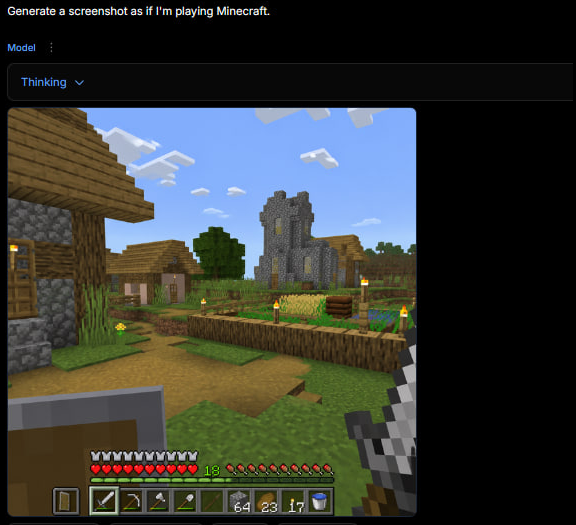
Goal: Create a square screenshot of a dark AI image-generation web interface showing a generated Minecraft gameplay screenshot. The interface should look like someone typed {argument name="user prompt" default="Generate a screenshot as if I'm playing Minecraft."} and received a rendered game image below it. Canvas: Square 1:1 image, approximately 576 by 576 pixels, dark black background, with the content aligned near the top-left and a large empty black margin on the right and bottom. Top UI layout: At the very top-left, show the white prompt text: “Generate a screenshot as if I'm playing Minecraft.” Beneath it, show a small blue label “Model” with a vertical three-dot menu icon beside it. Below that, draw a wide dark rounded rectangle dropdown bar containing the blue text “Thinking” and a small downward chevron. The UI should feel like a minimal web app in dark mode. Generated image panel: Under the dropdown, place a large square Minecraft-style gameplay screenshot with slightly rounded corners. The screenshot should be first-person perspective in a bright blocky village scene. Minecraft scene details: Show a sunny daytime village with a blue sky and exactly 8 visible white blocky cloud clusters. On the left foreground, include a partially visible wooden-and-cobblestone house with a wooden door, plank roof, cobblestone wall, and a lit torch. In the center distance, show a gray stone church/tower with narrow yellow-lit windows. Around it, include a small village house, a leafy green tree, grass blocks, a dirt path, and a fenced crop field. The crop field should contain golden wheat, green crops, a wooden fence border, and exactly 6 visible torch posts with yellow flames around the village/farm area. Keep the Minecraft aesthetic authentic: cubic blocks, pixelated textures, low-resolution game rendering, no photorealism. First-person HUD and equipment: In the lower left foreground, show a raised shield. In the lower right foreground, show the player holding an iron sword. Along the bottom, draw the Minecraft HUD with exactly 10 red hearts, exactly 10 hunger drumsticks, a green experience level number “18,” and a 9-slot hotbar. The hotbar should contain these 9 visible slots from left to right: shield icon, iron sword, pickaxe, axe, shovel, empty or dark slot, stack of 64 blocks, stack of 23 torches/items, stack of 17 items, plus a water bucket icon visible at the far right edge if space permits. Make the HUD slightly pixelated and game-accurate. Visual style: The whole image should look like an actual screenshot of a browser-based AI generator displaying a generated Minecraft gameplay image, not a clean standalone render. Use dark UI chrome, small crisp text, and a blocky game screenshot embedded inside it. No watermark, no extra captions, no logos.