Case Media
Case Notes
This page keeps the media, full prompt, and original source together so you can inspect the result first and decide whether the prompt is worth copying, saving, or comparing.
Case Insights
To make this page easier to search, cite, and reuse later, the case is also broken down into practical guidance about usage, visual cues, and prompt structure.
Best Fit Scenarios
- Use this as a model & community benchmark when you need a fast style baseline before rewriting your own prompt.
- It is especially helpful if your target overlaps with Screenshot, Character, Typography and you want to judge the image result before tuning wording.
- Keep it as a control sample when you compare nearby prompt variants one variable at a time.
Visual Signals To Notice
- The clearest style signals here are Screenshot, Character, Typography, so those should usually stay in your first rewrite.
- This kind of case is strongest when you watch deltas: what changed, what broke, and which prompt choice caused that shift.
- This case keeps one primary output, so the first image should be treated as the main visual reference.
How The Prompt Is Structured
- The prompt reads as a long, highly specified prompt, which is useful when you want to judge how much specificity this direction needs.
- Its keyword cluster is centered on Screenshot, Character, Typography, so you can usually keep that cluster while swapping subject, camera, layout, or copy details.
- A practical rewrite path is: keep the outcome, keep the strongest style cues, then replace only the subject and environment blocks.
Good Follow-up Questions
- What changes first if you keep Screenshot, Character, Typography but switch the subject matter?
- Which part of the result comes from section-level structure (Model & Community) versus tag-level style cues?
- Which related cases in the same section give you a cleaner or more extreme variation of the same direction?
Full Prompt
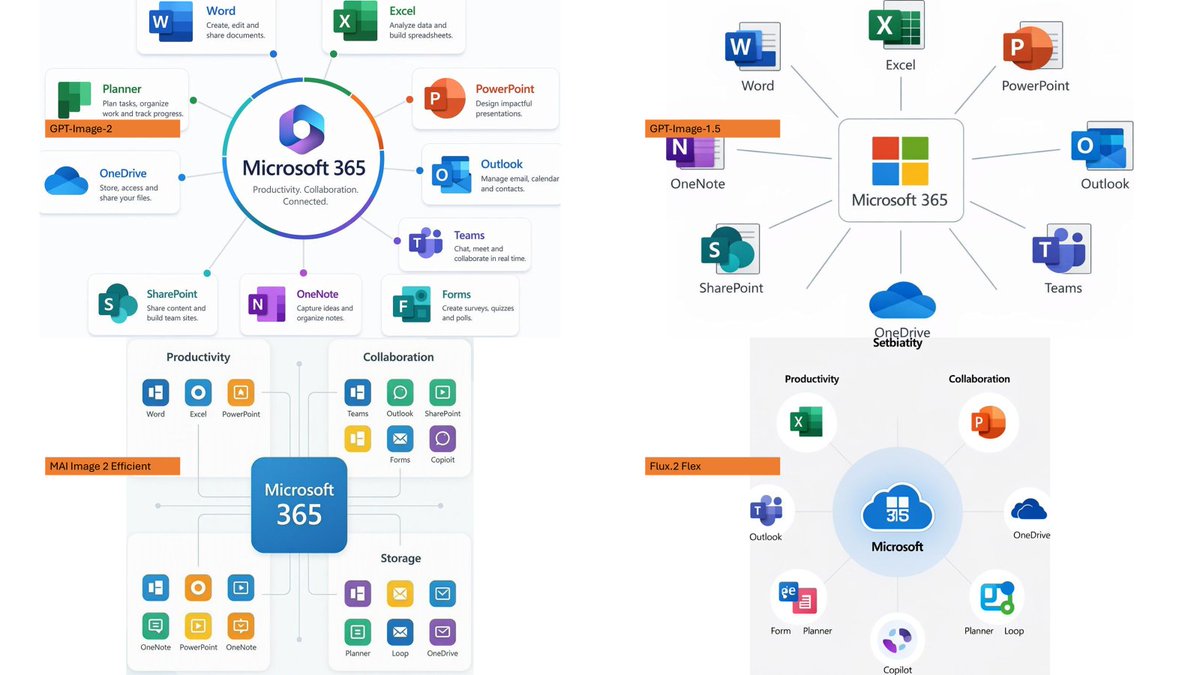
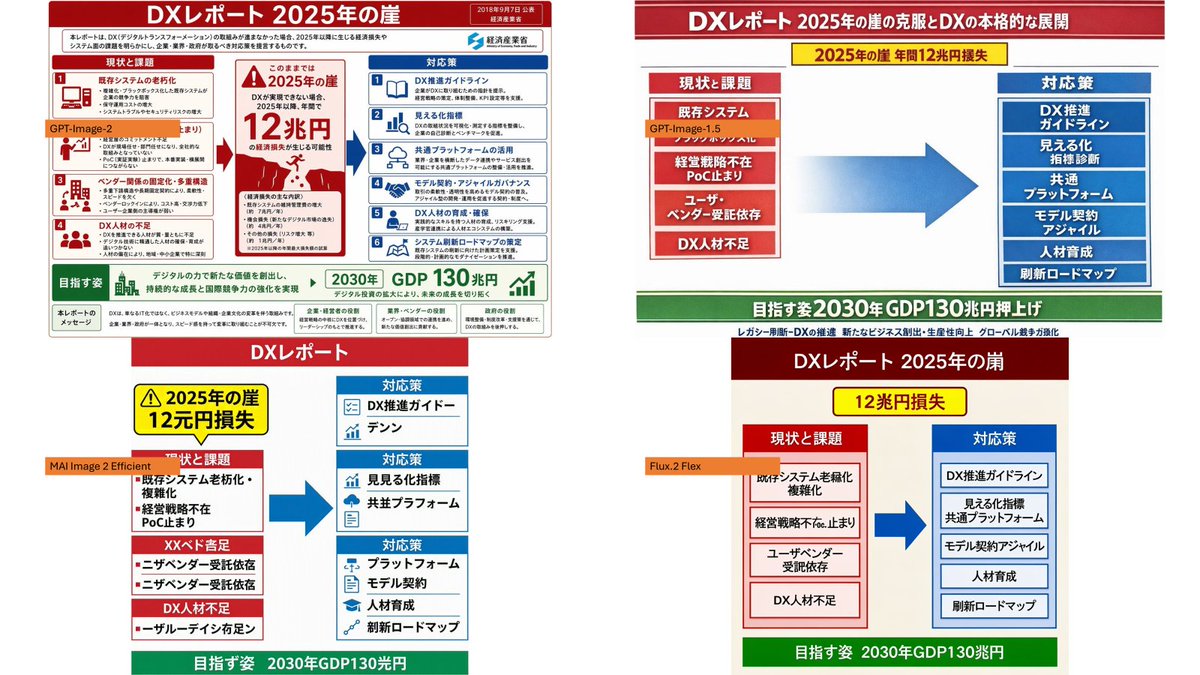
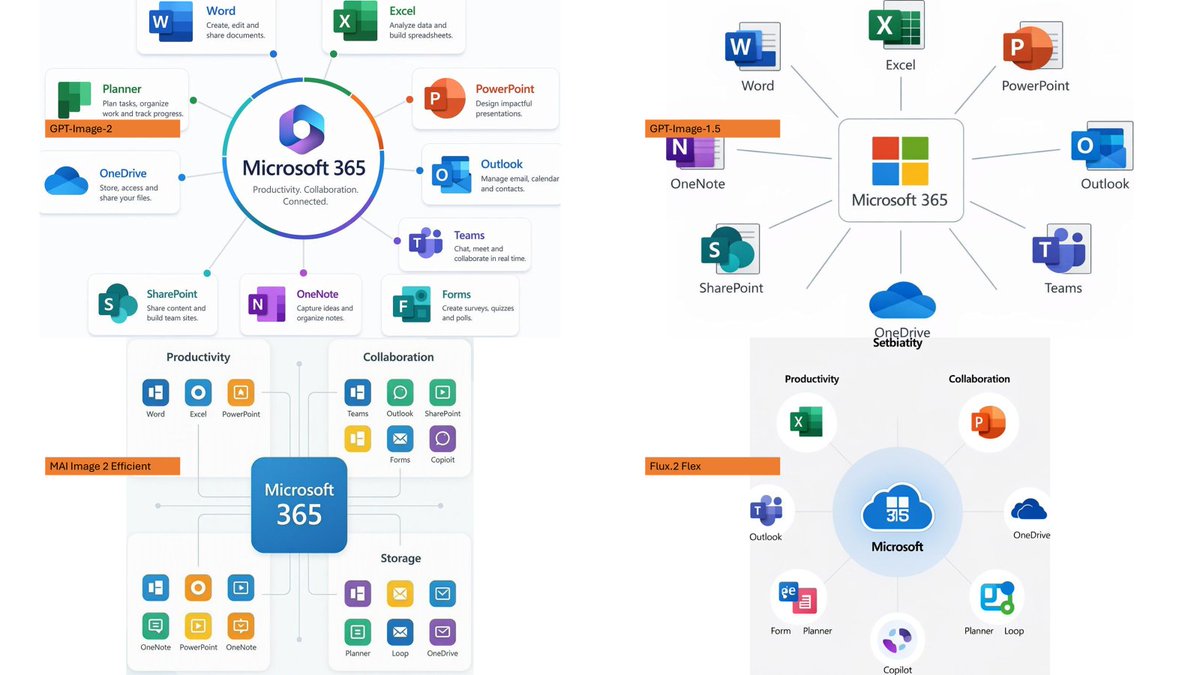
Using the provided reference image as a rough inspiration for an official explanatory slide/infographic, create a clean comparison image showing the same Microsoft 365 ecosystem concept generated in four different model styles. Canvas and layout: 16:9 white slide, divided into exactly 4 quadrants in a 2×2 grid with generous whitespace and no hard divider lines. Subject: Each quadrant should show a Microsoft 365 hub-and-spoke or app ecosystem diagram centered on {argument name="main product name" default="Microsoft 365"}, with surrounding Microsoft app icons and short English labels. Quadrants and visible orange model tags: Include exactly 4 orange labels, one per quadrant: 1. Top-left: {argument name="first model label" default="GPT-Image-2"} — polished circular Microsoft 365 hub diagram with multiple app cards around it. 2. Top-right: {argument name="second model label" default="GPT-Image-1.5"} — simpler radial hub diagram with icons around a central Microsoft 365 box. 3. Bottom-left: {argument name="third model label" default="MAI Image 2 Efficient"} — structured dashboard-like diagram with grouped sections such as Productivity, Collaboration, and Storage. 4. Bottom-right: {argument name="fourth model label" default="Flux.2 Flex"} — soft circular diagram with icons orbiting a central Microsoft cloud-style mark. Apps to include across the diagrams: Word, Excel, PowerPoint, Outlook, Teams, OneDrive, SharePoint, OneNote, Planner, Forms, Loop, and Copilot where appropriate. Use recognizable Microsoft-style colored app icons, but keep everything as a generated infographic rather than a screenshot. Style: Modern corporate PowerPoint infographic style, crisp readable English text, flat vector icons, subtle shadows, light gray connector lines, mostly white background, Microsoft blue/green/orange/purple palette. Keep the overall image clean and presentation-ready.